From nothing to your first campaign, one step at a time.
What to have ready, what to click, and what to expect at each step. Most businesses
get through it in under an hour, plus the time Meta takes to approve a template.
Every step has a short video showing it in the app.
Setup is quick when nothing sends you away to find something halfway through. Tick these off first.
What
Why you need it
A phone number for your business
It becomes your WhatsApp Business number. It must be able to receive an SMS or a phone call for a one-time code. A number that is not currently active in the WhatsApp or WhatsApp Business app is the simplest. If yours already is, write to us before changing anything.
A Facebook login
Meta’s signup asks you to log in with Facebook, so the WhatsApp Business Account is created under your business. Use the login of whoever owns or runs the business.
Your business details
The name customers know you by, your address, and a website or social media page. This is what customers see on your WhatsApp profile, and Meta reviews the name.
A card for Meta
WhatsApp’s own message charges are billed to you directly by Meta, so Meta asks for a payment method. We never see or handle it.
A work email
For your GetSetSales account. We send a six-digit code to confirm it.
Your customer list
A spreadsheet of phone numbers, with names if you have them. Only include customers who have agreed to hear from you on WhatsApp.
Not needed to start: Meta business verification. You can send without it, to up to 250 different customers a day. Do it later, when you want to reach more.
Enter your full name, phone number, work email and a password of at least 10 characters.
Open the email we send you and type the six-digit code into the Check your email screen. If it has not arrived in a minute, look in spam, then use the resend link on that screen.
Your account is ready straight away. There is no approval to wait for and no card is asked for.
Signing in later. Use your email and password, or press Sign in with a code instead on the login screen and type the one-time code we email you. Handy for a teammate who has forgotten their password.
STEP 2 · ABOUT 10 MINUTES
Connect your WhatsApp number
Watch: Connect your WhatsApp number2:33Watch: Keep using the WhatsApp Business app2:28Watch: Your starter pack after connecting1:14
In GetSetSales, open Settings. Type your Business Name and press Connect your WhatsApp Number.
A Meta window opens. Log in with Facebook and continue.
Choose your business portfolio, or create one with your business name and details.
Choose or create a WhatsApp Business Account, then enter the display name customers will see.
Enter the phone number, choose SMS or phone call, and type in the code Meta sends to it.
Press Finish. The window closes and your number appears in Settings.
Once a real number is connected, your Dashboard shows a starter pack: switch on a default reply already written with your business name in one click, and switch on a ready-made automation to start from.
Allow pop-ups for app.getsetsales.in if the Meta window does not open. Never share the verification code with anyone, including us. The WhatsApp Business Account belongs to your business, and you can disconnect the number at any time.
STEP 3 · ABOUT 5 MINUTES
Add a payment method on Meta
Watch: Add a payment method on Meta1:28
Meta will not deliver template messages from an account with no payment method. This is done on Meta’s side, not in GetSetSales.
Open business.facebook.com and go to your business settings.
Find the billing or payment settings for your WhatsApp Business Account.
Add a card and save it.
Meta changes its menus from time to time, so the exact names may differ. This card pays WhatsApp’s charges only. Our platform fee comes from your GetSetSales wallet, which is step 19.
STEP 4 · 10 MINUTES, PLUS META’S REVIEW
Create a message template
Watch: Create a message template2:11Watch: If a template is rejected2:43Watch: Image and carousel templates2:11
A template is the message you send first: an offer, a reminder, an order update. WhatsApp only lets a business start a conversation with a message Meta has approved.
Open Templates and start a new one under Create Template.
Give it a name in lowercase with underscores, for example order_dispatched.
Pick the category. Utility is for order updates, reminders and confirmations. Marketing is for offers and promotions. WhatsApp charges much less for utility messages, so pick it whenever it honestly fits.
Pick the language the template is written in. English is already chosen; search the list for Hindi, Tamil, Marathi or any other.
Write the body. Use {{1}}, {{2}} and so on wherever each customer’s own details go.
Add a header, a footer or buttons if you want them, then submit.
Hi {{1}}, your order {{2}} has been dispatched and should reach you by {{3}}.
Meta usually reviews a template within minutes, occasionally up to a day. The Templates page shows whether each one is approved, pending or rejected; press Sync from Meta to refresh it.
Carousel templates. To show several products or courses in one message, choose Carousel when creating a template: 2 to 10 cards that customers swipe, each with its own image, text and buttons. Every card must have the same kind of buttons. Meta allows carousels only as Marketing templates, so each send is charged at Meta’s marketing rate plus our ₹0.15. When a customer taps a card’s button, your automation knows which card it was.
To get approved first time: say who you are and why you are writing, do not start or end the message with a variable, and do not put a promotion in a utility template.
STEP 5 · ABOUT 5 MINUTES
Add your contacts
Watch: Import your contacts2:07Watch: Organise contacts with tags and filters1:34Watch: Get more contacts with a link and QR code1:30
Open Contacts and press Import CSV. Press Download sample file if you want a ready-made layout to fill in.
Save your customer list as a CSV file. Every spreadsheet program can do this from File → Save as or Download.
One column must hold the numbers, named phone, mobile, number or whatsapp. Include the country code: 919876543210.
Optional columns: name, and tags to label contacts as they come in. Several tags in one cell are separated by commas, such as Customer, VIP. Every other column, such as city or plan, is saved against the contact and can fill the gaps in a template. A row-number column like # is ignored.
Choose the file. Before anything is saved, you see how many contacts are ready, which rows will be skipped and why, how each column will be read, and the first 10 contacts as they will look.
Numbers without a country code, such as 9876543210, are flagged rather than guessed. If they are all Indian numbers, press Add 91 to all and the check shows them with 91 added; otherwise those rows are skipped. Importing a contact you already have updates it and adds the new tags, so nothing is duplicated.
An account holds 10,000 contacts; a further 1,00,000 is ₹499 for 30 days.
Get more contacts. Press Get more contacts on the Contacts page for a link and a QR code that open a WhatsApp chat with your business, with a message already typed. Put the QR code on a poster, a bill or your shop counter; everyone who writes in is added to your contacts.
Only message people who agreed to it. Sending to people who did not ask gets your number reported, and WhatsApp lowers your quality rating and your daily limit. Anyone who opts out is excluded from every future campaign automatically.
STEP 6 · ABOUT 10 MINUTES
Send your first campaign
Watch: Send your first campaign1:36Watch: Read your campaign results1:24
Open Campaigns and press New campaign. There are five steps.
Choose Audience. Upload a CSV, or pick everyone or a segment from your contacts.
Select Template. Pick one of your approved templates.
Map Parameters. Match each {{1}}, {{2}} in the template to a column, such as name or order number.
Test Message. Send it to your own number first and read it on your phone.
Review & Schedule. Send it now, or pick a date and time at least five minutes ahead. Times are in IST.
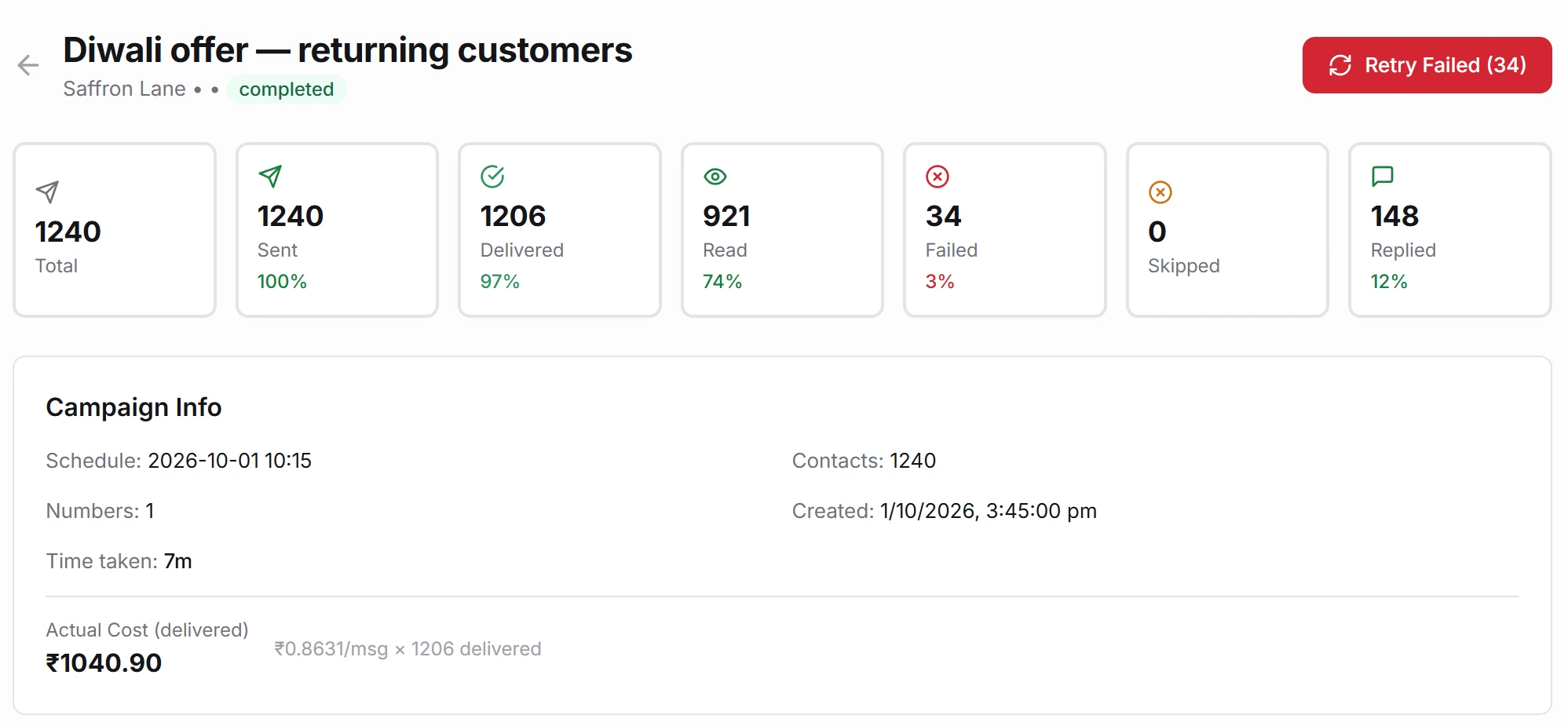
When it has run, open the campaign to see how many were delivered, read and replied to, and why any failed. Failed messages that can still be delivered can be retried from the same screen.
app.getsetsales.in/campaigns
Swipe sideways to see the whole screen
Product preview with example data
STEP 7
Reply to customers
Watch: Reply to customers in the Inbox1:48Watch: Chat notes and @mentions1:20
Every reply lands in the Inbox. Open a conversation and answer in your own words, with text, a photo, a document or a voice note.
Notes and mentions. Switch the reply box to Note to leave a message for your team inside the chat. Customers never see notes. Type @ and a teammate’s name to mention them; they find it under the Mentions tab in the Inbox.
The number beside Inbox counts chats where the customer wrote last and nobody has opened them. Press Unread to list exactly those, My Chats for the ones you have replied in, or pick a tag to see only those customers.
The 24-hour window. After a customer messages or calls you, WhatsApp lets you reply freely for 24 hours, and each new message or call from them restarts the clock. Once it runs out, switch the reply box from Text to Template to write to them again.
STEP 8 · OPTIONAL · ABOUT 5 MINUTES
Track customer requests with tickets
Watch: Track requests with tickets1:12
Tickets make sure every request that needs following up has an owner and an outcome. Leave them off if you do not run a support desk.
Open Settings. In the Ticket system card, press Turn on and tick the numbers it should work on.
Edit the rating message if you like. It is what customers receive when their ticket is closed; {{name}} becomes their name.
From now on, a chat that needs following up opens a ticket by itself, including every chat an automation hands to a person, and it is assigned to whoever replies first.
Work tickets from the Tickets page or from the chat: set the status, reassign it, add a note, and close it when it is done.
A resolved ticket nobody reopens closes itself after 3 days. Before a customer’s 24-hour window closes on an open ticket, they get a one-tap message to keep the chat going; if they do not answer within an hour, the ticket closes quietly. When a ticket closes, the customer is asked to rate the support, and Tickets shows each teammate’s results.
STEP 9 · OPTIONAL
Track leads with the sales pipeline
Watch: Track leads with the sales pipeline1:28
The pipeline shows how close each person is to buying. Tags say who someone is; the stage says where they are.
Open a chat in the Inbox. In the contact panel on the right, pick a stage: New, Interested, Qualified, Proposal sent, Won or Lost.
The Contacts page shows how many people are at each stage.
Filter the Inbox by stage to work one group at a time, such as everyone at Proposal sent.
Send a campaign to one stage by choosing it as the audience, or start a drip when someone reaches a stage (step 11).
The six stages are fixed, so every teammate reads them the same way.
STEP 10 · ABOUT 15 MINUTES
Build your first automation
Watch: Start from a ready-made automation1:22Watch: Build an automation1:30Watch: Reply to Click-to-WhatsApp ads1:46
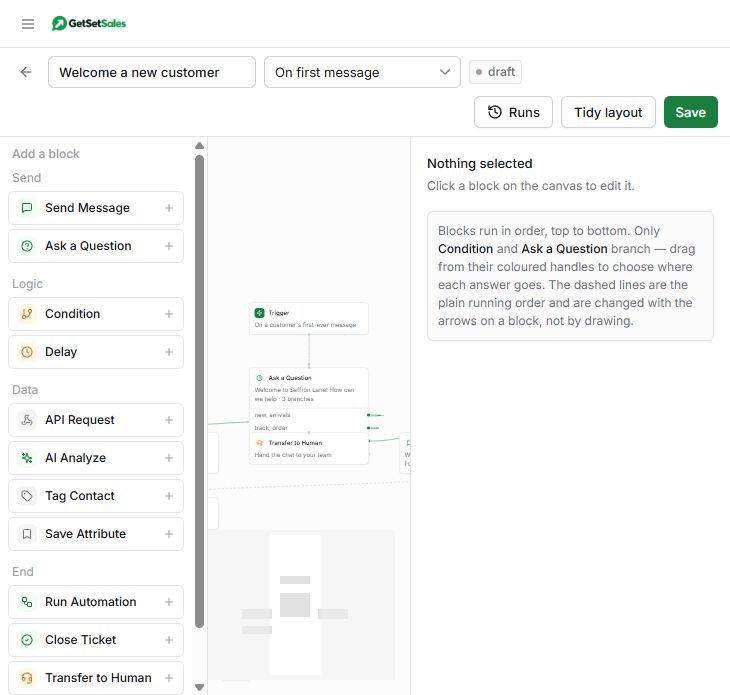
An automation replies for you. Each one is a trigger, the thing that starts it, followed by blocks that run in order, top to bottom. Build one for the question you answer most and let it handle the first few messages of every chat.
Open Automations and press New automation. Pick a ready-made starting point, such as New lead — qualify and route or Course enquiry, or choose Blank automation.
Give it a name, then choose the trigger at the top of the builder. On keyword suits most first automations: type the words that should start it, such as price, fees or admission.
Add blocks from the left. Click a block on the canvas to edit it in the panel on the right.
End every path with Transfer to Human or End, so no customer is left waiting.
Press Save. Back on Automations, open the automation’s … menu and choose Set live. Message your business number from another phone to test it; Runs in the builder shows what happened in each chat.
Trigger
Starts the automation when…
On keyword
A customer’s message contains a word you choose.
On first message
Someone writes to you for the first time ever.
On any message
A message arrives that no other automation answers.
On a message from your ad
Someone taps your Click-to-WhatsApp ad on Facebook or Instagram.
After 24h window closes
The free reply window with a customer ends, so you can follow up with a template.
On a Razorpay or PayU payment
A payment succeeds or fails, or a payment link is paid or expires. See step 12.
Block
What it does
Send Message, Send Template
Sends text, a photo, a document, or an approved template.
Ask a Question
Asks with buttons or a list, waits for the answer, and sends each answer down its own path.
Book a Meeting
Offers your free times and books the one the customer taps. Needs Meetings, step 17.
Condition, Delay
Branch on a keyword or a saved detail; wait before the next block.
Tag Contact, Save Attribute
Label the customer and store what they told you, such as their course or city, for later campaigns.
Google Sheet
Adds, finds or updates a row in your sheet.
AI Analyze
Reads the customer’s reply with AI and fills in details you can branch on. See step 15.
API Request
Calls your own system and uses its answer.
Run Automation, Close Ticket, Transfer to Human, End
Hand over to another automation or a person, or stop.
app.getsetsales.in/flows/builder
Product preview with example data
Your team can step in at any time. When someone replies from the Inbox or the phone, the automation goes quiet for that chat. Set for how long under Chatbot pause in Settings.
STEP 11 · OPTIONAL · ABOUT 10 MINUTES
Follow up automatically with drip campaigns
Watch: Drip campaigns: follow up automatically1:39
A drip is a short series of messages each person gets over minutes, hours or days: a welcome today, more detail in 2 days, an offer on day 5. It stops by itself the moment they reply, pay or book.
Open Drip campaigns and press New drip. Start from a recipe, such as Welcome a new lead, Recover a failed payment or Renewal reminders, or build your own.
For each message, pick one of your approved templates and when it goes: after a wait, at a time of day, or on a date saved on the contact, such as a renewal date.
Choose how people join: a tag, a Razorpay or PayU payment, a meeting booked or cancelled, a saved detail, a pipeline stage, an automation’s Add to Drip block, or by hand from the drip list.
Choose when it stops: on reply, when they reach a goal such as paying or booking, or after a number of messages with no answer. Set sending hours and a weekly limit per person if you want them.
Press Send me a test to get the messages on your own phone, then Save.
The drip list shows how many people are at each message, and how many were delivered, read and replied to. Each message is a template, charged like any other: our ₹0.15 plus Meta’s charge for its category. Up to 10 messages per drip, with waits of up to 90 days.
STEP 12 · OPTIONAL · ABOUT 10 MINUTES
Message customers when they pay
Watch: Razorpay payments and Google Sheets1:11
Connect your own Razorpay or PayU account and payments start automations: a receipt when someone pays, a nudge with a fresh link when a payment fails, a reminder when a payment link expires.
Open Automations. In the Razorpay or PayU card at the top, press Connect.
For Razorpay, copy the webhook address and secret shown, add them as a webhook in your Razorpay dashboard, tick the events listed, and press I have added it. For PayU, enter your merchant key and salt.
Create an automation and choose the trigger On a Razorpay payment or On a PayU payment. Tick the events that should start it, such as Payment received.
Make the first block a Send Template. A payment can arrive outside the 24-hour window, so the first message has to be an approved template.
In the panel on the right, start listening and make a small real payment. Its details appear as fields you can put in your template, and you can save any of them to the contact, such as the course name. Press Send a test run to try the automation on it.
app.getsetsales.in/flows/builder
Product preview with example data
Google Sheets. To keep a register, add a Google Sheet block. Share your sheet as an editor with the address the block shows, and put column names in the first row. The block can add a row, find one, or update one.
STEP 13 · OPTIONAL · INDIA · ABOUT 20 MINUTES
Take payments inside WhatsApp
Watch: Take payments inside WhatsApp1:29
Send a customer an order they review and pay inside the chat, by UPI, card or netbanking. The money goes straight to your own payment gateway; it never passes through GetSetSales.
Before you start: a verified Meta business in India, an approved display name on your WhatsApp number, and an Owner or Admin login on your Razorpay, PayU, BillDesk or Zaakpay account.
In WhatsApp Manager, open Payment configurations for India and create one: give it a name, connect your gateway, and finish the one test payment Meta asks for.
In GetSetSales, open Settings. The Payments on WhatsApp card lists your configuration once Meta has it. If you sell physical products, add your business address there.
In a chat, press the ₹ (Request payment) button, add the items and amounts, and send it. This works while the customer’s 24-hour window is open.
The customer pays in WhatsApp. The order in the chat updates when the payment succeeds or fails, and it can start an automation, such as sending a receipt.
Not the same as payment links. Razorpay and PayU payment links (step 12) need none of this setup. Your gateway’s normal fees apply to every payment.
STEP 14 · OPTIONAL
Answer common questions with FAQ answers
Watch: FAQ answers and the default reply1:13
For the questions you get every day — fees, timings, refunds — you do not need to build an automation. Write the question and your answer once. When a customer asks it in their own words, in Hindi, English or a mix, they get your answer.
Open Automations. In the FAQ answers card at the top, press Set up.
Type a question and the answer you want sent, then press Add a question for the next one. You can add up to 15, and each answer can be up to 1,000 characters.
Type a sample message under Try a customer message and press Test to see which answer would be sent.
Tick Answer these questions automatically and press Save.
The reply is always your own answer, word for word. If a message matches none of your questions, nothing is sent from your FAQ and the chat waits for your team.
This step needs AI. AI is what recognises which question a customer is asking. Turn it on first by adding your own AI key, as in step 15. Without one, no question is answered.
STEP 15 · OPTIONAL · ABOUT 5 MINUTES
Add AI to your automations
Watch: AI in your automations1:09
AI is optional. It does two jobs: it recognises which of your FAQ questions a customer is asking (step 14), and it powers the AI Analyze block, which reads a free-text reply and works out what the customer means. Customers only ever read messages you wrote; AI decides which path to take.
Turn it on in one of two ways:
Option
How
What it costs
The AI add-on
Coming soon. It will be switched on from Billing.
Until then, use your own AI key.
Your own AI key
Open Settings, find the AI card, choose Claude, ChatGPT, Kimi or a compatible provider, and paste your key.
You pay that provider directly. No credits are used.
To use the AI Analyze block:
Put an Ask a Question block before it, so there is a reply to read.
Add AI Analyze. Under What should the AI work out?, write plain instructions, for example: Set intent to exactly one of: fees, timings, admission, other.
Leave Text to analyse as {{last_reply}}, what the customer just said, and add each name you used, such as intent, under Output variables.
Add a Condition block after it with one path per value, and send “other” to Transfer to Human.
If your AI key stops working or runs out of balance with the provider, AI steps and FAQ answers are skipped and the chat waits for your team, so nothing wrong is sent.
STEP 16 · OPTIONAL
Set a default reply
Watch: FAQ answers and the default reply1:13
The default reply is what a customer gets when their message matches no automation and none of your FAQ answers: a short message saying you have it and when to expect a reply. Without one, they hear nothing until someone opens the inbox.
Open Automations. In the Default reply card, press Set up.
Tick Send a default reply and write the message.
Under How often, choose how often one customer can receive it. Once a day suits most businesses: someone who sends five messages in a row gets one acknowledgement.
If you have more than one number, tick the numbers it should reply on. Press Save.
It stays quiet while an automation is mid-conversation, after a chat has been handed to a person, and while a teammate is replying. It needs no AI; its reply counts as a conversation, ₹0.15 once per customer per 24 hours.
STEP 17 · OPTIONAL · ABOUT 10 MINUTES
Let customers book meetings on WhatsApp
Watch: Let customers book meetings1:27Watch: Group calls1:16
Customers pick a day and a time inside the chat, get the meeting link straight away, and receive reminders before it. Every booking lands on your Meetings page. Good for demo classes, consultations, site visits and appointments.
Open Meetings and press Set up meetings.
Enter the Meeting name customers will see, such as Free demo class, and the Meeting link: Google Meet, Zoom, Teams or any link. Choose How long is a meeting? and a Gap after each meeting.
Under When you’re available, tick your working days and set your hours; add a second set of hours for a lunch break if you need one. Set the Minimum notice and how far ahead customers can Book up to.
Pick up to five reminders, such as 1 day and 1 hour before, and who gets them: the customer, you, or both. Enter Your WhatsApp number for your own alerts; it must be different from your business number.
Save. Then open an automation and add a Book a Meeting block where customers should book, for example after a Book a call button.
app.getsetsales.in/meetings
Swipe sideways to see the whole screen
Product preview with example data
From the Meetings page you can open the chat, join, change the time or cancel any meeting, and book one for a customer yourself. Reminders carry I am available and Please reschedule buttons, so you know who is coming. To see your day on your phone, send TODAY, TOMORROW or SCHEDULE to your business number from your own WhatsApp number.
Group calls. For a webinar, a group demo or an orientation, choose more than one under People per time slot in the meetings setup. Everyone who books that time gets the same link, and the time stops being offered once it is full.
Price. Meetings is free for 20 days from the day you save your setup, then ₹199 a month, paid from Billing. Reminders are WhatsApp templates: they use your first 100 free messages, then cost ₹0.15 each from your wallet.
STEP 18 · OPTIONAL
Invite your team
Watch: Invite your team1:02
Open Team and press Add teammate.
Enter their email and choose a role. An Admin runs campaigns, contacts, templates and automations. An Agent answers customers in the inbox.
They get an email invitation, and sign up with that same email address.
Three team members are included, counting you. Each extra person is ₹199 for 30 days, added from the same Team page.
STEP 19
Top up your wallet
Watch: Top up your wallet1:21
Your first 100 messages need no balance, so you can do everything above before paying us anything. After that:
Open Wallet and enter an amount under Add funds. The minimum is ₹500.
Pay in the checkout that opens. The balance appears in your wallet a few seconds later.
Our fee is ₹0.15 for each template message delivered and ₹0.15 once per customer conversation you answer, by bot or by your team. Individual replies are free from us. Sending, and starting new automation runs, pauses when the balance falls to ₹100, so top up before it gets there. See full pricing.
GOOD TO KNOW
Limits to know on day one
These are WhatsApp’s rules and apply on every platform.
Limit
What it means for you
250 customers a day
Until Meta has verified your business, you can start conversations with 250 different customers in any 24 hours. Completing Meta’s business verification raises this, and it grows as customers respond well to your messages.
Templates need approval
Anything you send first must be an approved template. Replies inside the 24-hour window do not.
Quality rating
WhatsApp rates each number green, yellow or red from how customers react. Blocks and reports lower it, and a low rating lowers your daily limit. It is shown beside your number in Settings.
Opt-outs
A customer who asks you to stop must not be messaged again. GetSetSales enforces this for you.
TROUBLESHOOTING
If something goes wrong
Watch: If something goes wrong1:36
The verification email has not arrived
Check your spam folder, then use the resend link on the Check your email screen. Make sure the address was typed correctly.
The Meta window does not open, or closes with an error
Allow pop-ups for app.getsetsales.in and try again in Chrome. If Meta shows an error, copy the exact wording and any code, and send it to support@getsetsales.in.
Meta says my number is already registered on WhatsApp
The number is active in the WhatsApp or WhatsApp Business app. Do not delete anything yet. Write to support@getsetsales.in and we will tell you the options for that number.
My template was rejected
The usual reasons are a message that starts or ends with a variable, wording too vague for Meta to tell what it is for, or a promotion submitted as a utility template. Fix it and submit it again under a new name.
Messages in my campaign failed
Open the campaign and look at the failed messages; each one shows a reason. The common ones are a number that is not on WhatsApp, the daily limit being reached, and no payment method on your Meta account.
The import says my numbers have no country code
The numbers in the file have 10 digits, like 9876543210, and WhatsApp needs the country code in front. If they are Indian numbers, press Add 91 to all on the import check. For other countries, add the code in your spreadsheet and import again.
Sending has paused
Your wallet balance has reached ₹100. Add funds from the Wallet page and sending resumes.
I cannot add another teammate
All your seats are in use. Three people are included; add a seat from the Team page, or remove someone who no longer needs access.
Still stuck?
Tell us which step you are on and the exact error you see. A person will answer. Never send us a password or a verification code.
Set up in about 10 minutes. We’ll help if you get stuck.
Create your free account, connect the WhatsApp number you already use, and send your first message today. Your first 100 messages carry no platform fee. Meta charges apply separately.